Two methods are available for searching your records in Axiell Go.
Simple Search
A Simple Search queries the Summary Data field: if your search term is found in a record's Summary Data, it is returned by a Simple Search.
All records have a Summary Data field, which pulls together data found in one or more other key fields in a record; which field or combination of fields in a module is used to make up Summary Data can be specified by each institution (and implemented by Axiell developers).
 Simple Search
To return records where your search term is located in a record's Summary Data field:
- Select the Simple Search icon
 .
. A Simple Search workspace with a basic search form is added to the Workspaces bar. Here it is possible to search across all modules and records that you are authorized to access:
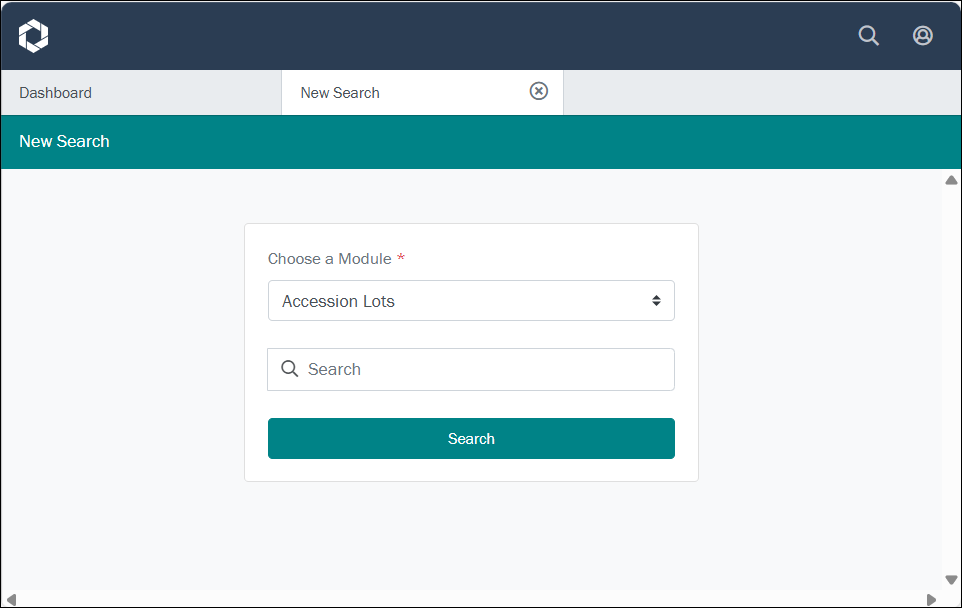
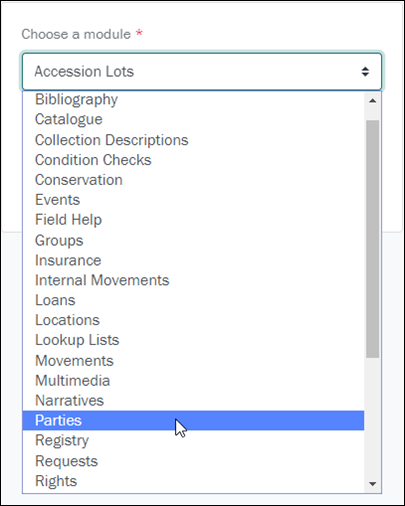
- Select a module The management of a collection can involve a vast amount of information about collection objects / items, people and organizations, events, administration and more. This information is stored in modules (database tables) that are specific to the type of information: for instance, the Parties module stores information about people and organizations involved in some way with your collection. from the drop list:
- Enter your search term in the Search field:
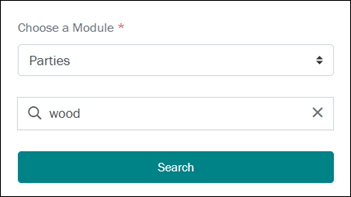
Your search term can be as simple as a single word or it can be one or more of a range of search types (phrase, stemming, phonetic, etc.), employing wildcard characters, and case sensitivity for instance.
- Run your search by selecting the Search button.
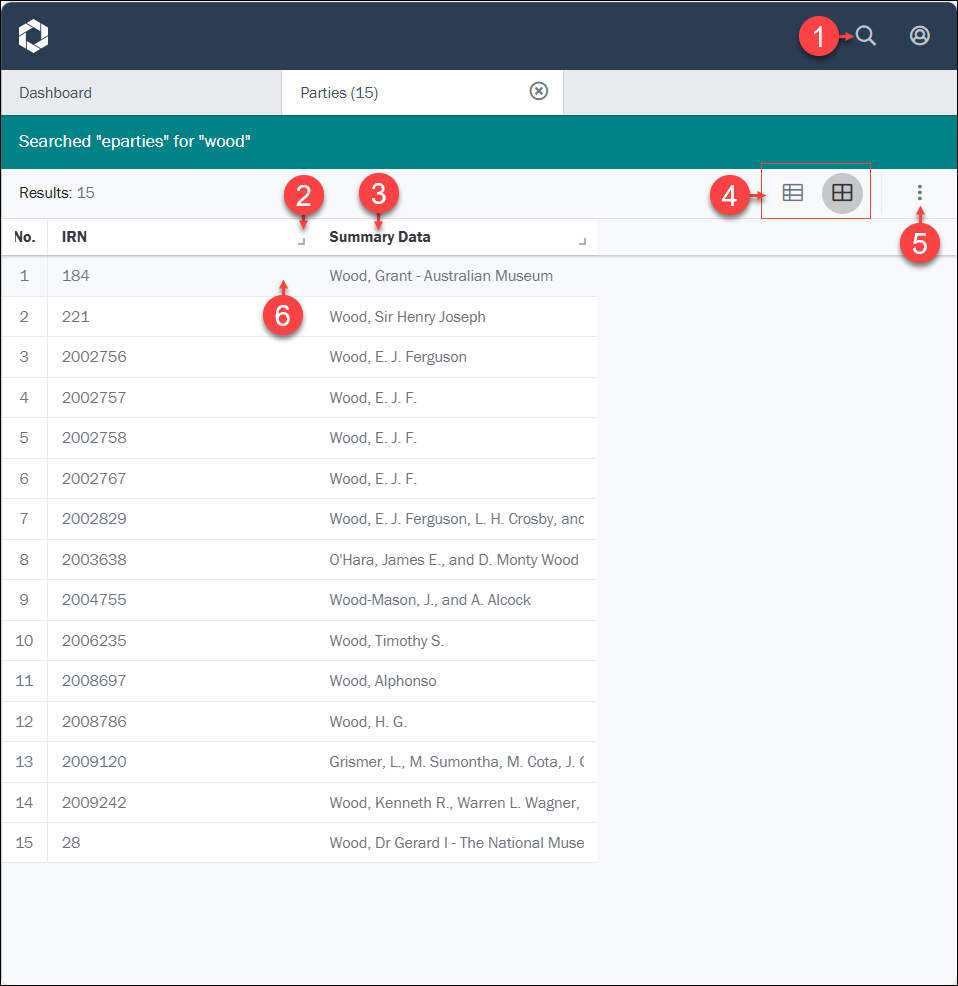
When your search is run, the workspace label changes from New Search to the name of the module searched and the number of records returned, e.g.:
Parties (15)
By default, your search results are presented in a table (Grid View), each row a record, and each column a field (or combination of fields); only a subset of fields is shown:
From here it is possible to:
1. Select the Simple Search icon to commence another simple search in a new workspace.
3. Sort records from highest to lowest; lowest to highest
4. Change from Grid View to List View
5. Options: Show / hide columns and change the order of columns
Full Search
To search all available fields in a record, select a module button in the Command Centre on the Dashboard; this will open a Search workspace similar to the EMu desktop client's form-based search interface.
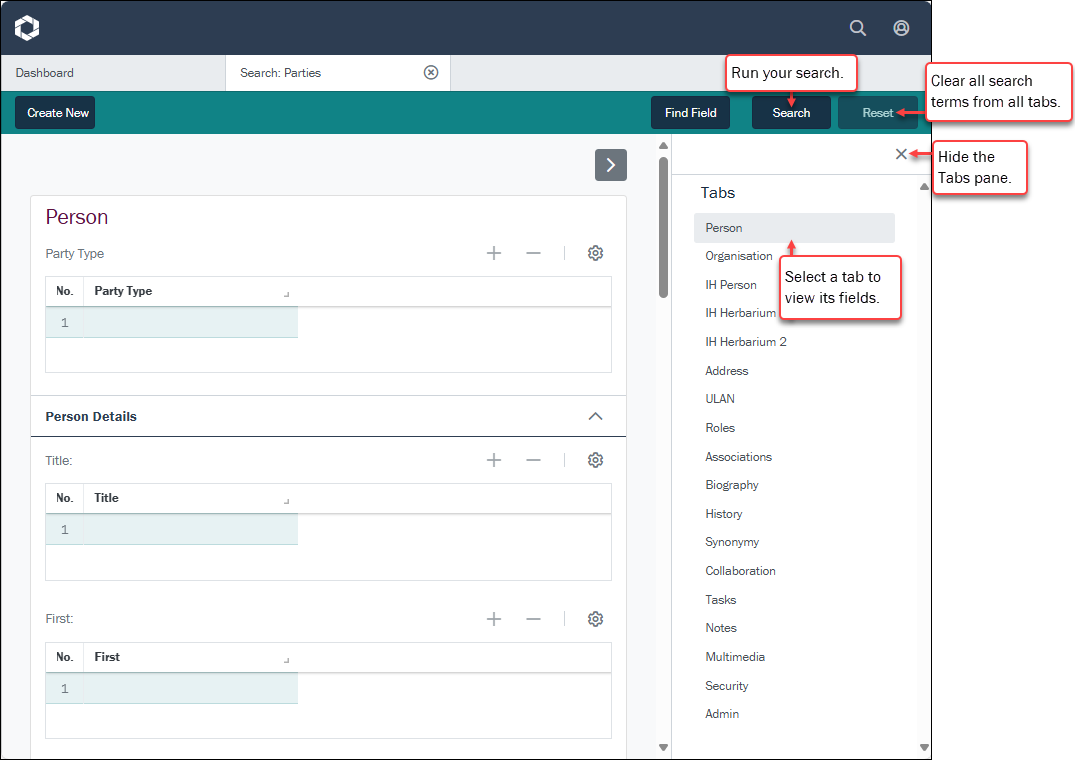
As with EMu, record data is organized into logical groupings on tabs. Below we see the Search workspace that opens when the Parties module button is selected in the Command Centre. The Parties module holds details about all people and organizations involved in some way with your institution's collection, and there is a tab for recording a person's name (Person tab), another for address details (Address tab), another for details about a person's roles (Roles tab), and another for recording biographical details (Biography tab), and so on. The main difference with the EMu desktop client is reversal of the layout in Axiell Go, with tabs listed in a panel on the right of the screen and the selected tab's fields displayed on the left:
In a Search workspace, you can:
- Select the Find Field button in the Workspace toolbar to locate any field in the current module. Details here.
- Clear all search terms on all tabs by selecting Reset.
- Select the Create New button in the Workspace toolbar to open an Insert workspace and add a new record to the current module.
And, of course, you enter search terms in one or more fields on any tab and select the Search button to run your query.
Although there are some minor differences (described below), if you are familiar with searching in EMu, you already know how to form a search phrase in Axiell Go as the same fundamental principles apply.
Comprehensive details about types of searches in EMu and how to construct a search phrase can be found here.
Overview of searching
When building a search term, options include:
- NOT: exclude records where this term appears in the search field.
- Phrases: return records which include an exact phrase in the search field.
- Phonetic: return records that contain terms in the search field that sound like the search term (can be useful with names).
- Case sensitivity: only return records where the case (upper / lower) of the search term matches the case in the search field.
- Wildcards:
*(substituting for one or more characters),?(substituting for a single character), and so on.
These search options can be used alone or in combination.
All of these searches employ special characters such as *, ?, ", @, !, ~ and =. Because Axiell Go is Unicode compliant, it is possible to search for these characters, and we must therefore indicate when their special meaning should apply. We do so by escaping these characters with a backslash (\).
Why we escape Special Characters in a search term
Unicode is a character set containing the characters of virtually every written language. Axiell Go is Unicode compliant which means that it is possible to represent and therefore search for almost any character, including punctuation and other special characters. We could, for instance, search for a single question mark (?) or for the @ character as part of a more complex string (fred@global.com).
Certain characters can have a special meaning when performing a search. A question mark can be used in place of a single character in a search term for instance: if we aren't sure whether an ise or ize spelling has been used (e.g. organise / organize), we could use a ? in place of the s/z, i.e. organi?e to search for both words.
However, because it is possible to search for a question mark in its own right, we need to tell Axiell Go when we want the special meaning of a character to apply.
Applying the special meaning of a character is done by escaping it, which we do with a backslash \.
For instance:
- A search for
organi?ewill attempt to locate the eight charactersorgani?e. - A search for
organi\?etakes advantage of the question mark wildcard and will locate bothorganiseandorganize.
Exceptions
- Searching an Attachment field: in EMu it is possible to enter a partial value in an Attachment search field (just a surname in Name: (Creator Details) for instance) and run the search; all records that match the value will be returned (if
Woodis entered in the field, any record attached to someone withWoodsomewhere in their name will be returned). In Go it is necessary to identify the specific attachment record (Wood, Gerardfor instance) in the Attachment search field before running the search. - For the moment, some additional features such as Also Search are not available.
When you run your query by selecting the Search button (or use the CTRL+ENTER keyboard shortcut), your search results display in a new workspace with a label comprising the name of the module searched and the number of records returned, e.g.:
Search: Parties (3)
By default, your search results are presented in a table (Grid View), each row a record, and each column a field (or combination of fields); only a subset of fields is shown:
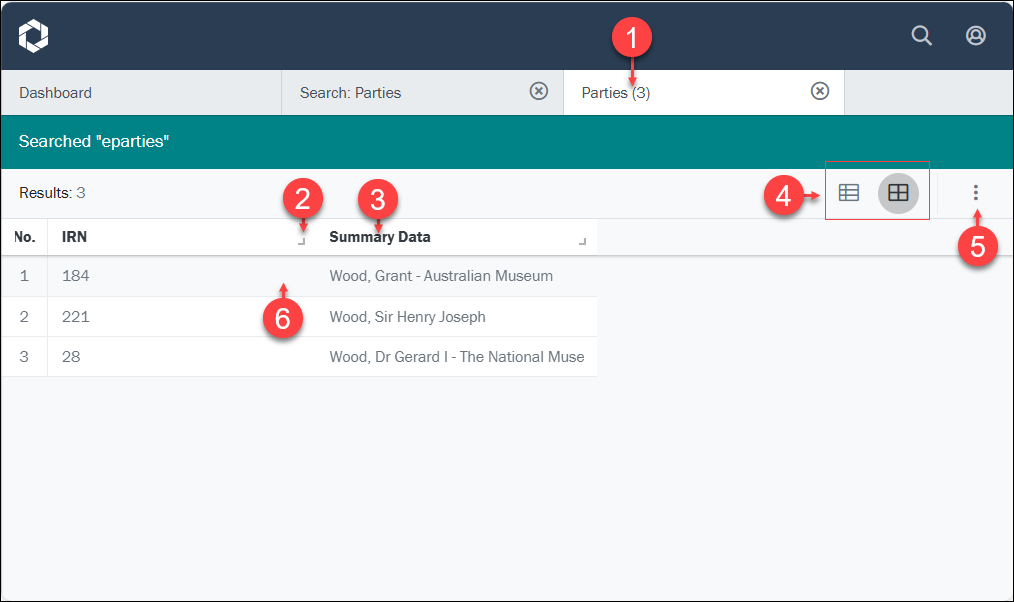
- Every time you run a search from a Search workspace, your search results display in a new workspace.
To run another search in the same module, return to the open Search workspace (Search: Parties in the example above), modify your search terms and run the query again; alternatively, open another Search workspace for the same module by selecting its button from the Command Centre (Parties in this case).
2. Resize columns
Resize a column by selecting the column icon  and holding down the mouse button. The cursor will change to indicate that the column can be resized:

Drag left or right to increase or decrease the width of the column, and release.
3. Sort records from highest to lowest; lowest to highest
Select (click / press) a column header to sort records (lowest to highest; A to Z). Select again to reverse the order.
Any column can be used to sort records, but records can only be sorted on one column at a time.
Whenever records are sorted on a column, an arrow head displays beside the column name. The direction of the arrow indicates whether records are sorted in ascending or descending order. In this example records are sorted by IRN in ascending order (from lowest to highest, e.g. 1 to 100):

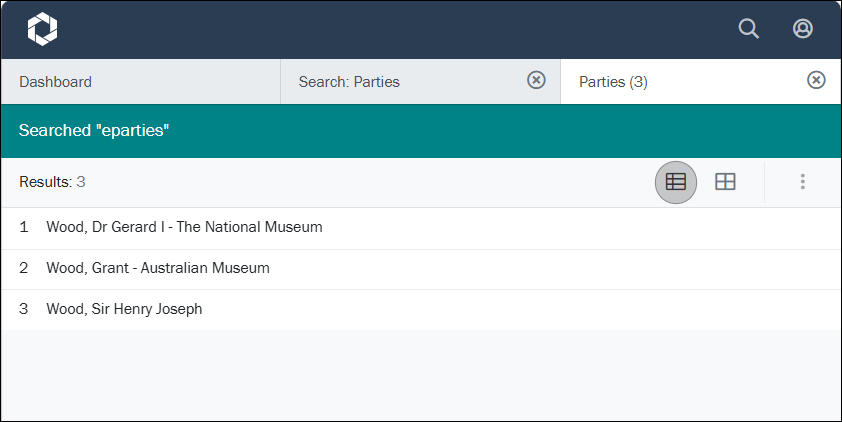
4. Change from Grid View to List View
Search results are presented in a table  (Grid View) by default (as shown above), or as a List View
  (showing Summary Data):
5. Options: Show / hide columns and change the order of columns
Options are enabled when Grid View is selected:
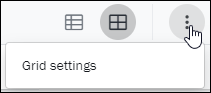
Grid settings allow you to modify the order of columns and determine which columns display:
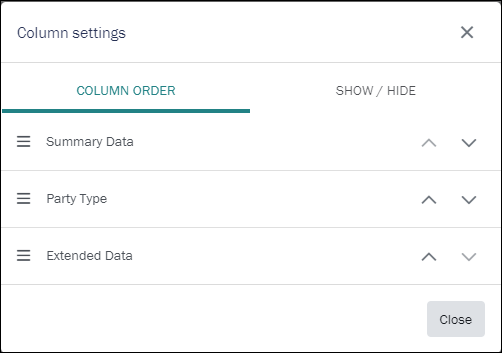
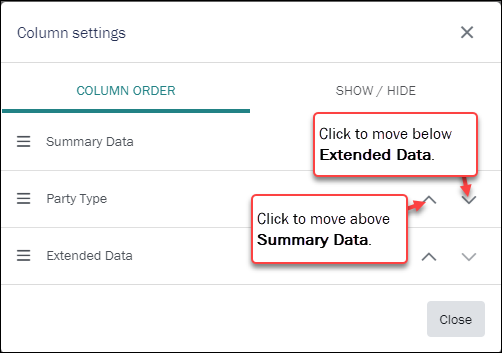
- Column Order: change the order of columns in Grid View:
- Drag and drop to reorder: select the hamburger icon in a row
 and drag; release.
-OR-
- Select the appropriate arrow head to move a column up or down the order:
- Drag and drop to reorder: select the hamburger icon in a row
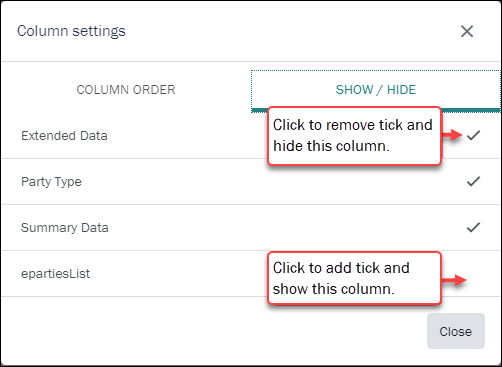
- Show / Hide
Select a row to show / hide a column (the tick toggles on to show and off to hide a column):
6. View and edit record details
You've run a search and records are listed in Grid or List View showing a subset of fields. To view all data available for a record, select (click) the record to open a Details View on the right:
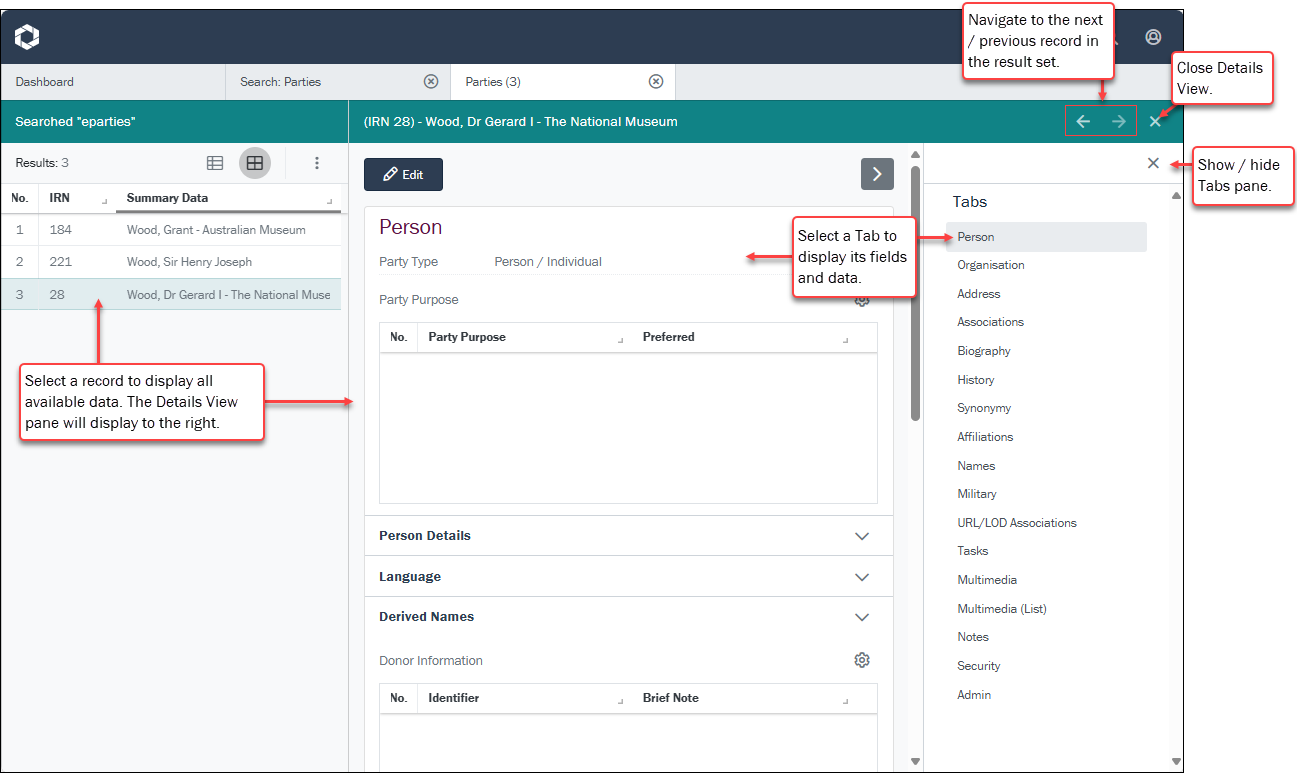
Select the Edit  button to make changes to the current record.
Resizing the panels
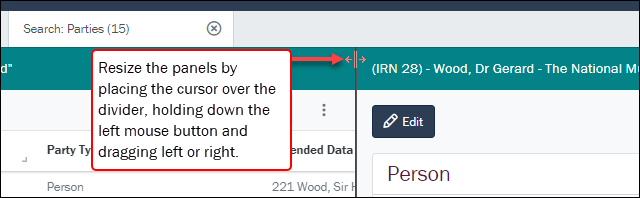
The two panels can be resized1 by placing the cursor over the panel divider, holding down the left mouse button and dragging left or right: