Information for Systems Administrators
The option to use OpenID Connect (OIDC) to authenticate access to Sapphire was introduced with Sapphire version 10. The OIDC protocol allows an application to delegate authentication to an external identity provider. The identity provider handles confirmation of the user's credentials in a web browser and then authorizes the application, via a secure mechanism, to allow access to some of the user's basic profile information such as their name or email address. More details here.
Navigate to your Sapphire URL (typically provided by a Programme Lead) to display a Login box.
Depending on your version of Sapphire and its configuration, the Login box may include a Login with OpenId Connect checkbox1:
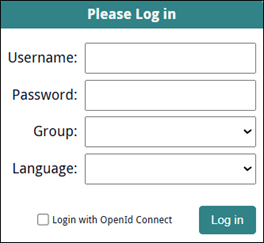
Authenticate with OIDC
The OpenID Connect (OIDC) protocol allows Sapphire to delegate authentication to an external identity provider. The identity provider handles confirmation of your credentials in a web browser and then authorizes Sapphire to allow access to some basic profile information.
-
Enter your EMu username2 in the Username field.
Note: The username only functions as a hint to the external identity provider as it is possible to sign into the provider with an account that is different from the one specified in Sapphire; this is resolved when you sign into the identity provider and Sapphire has connected to the EMu server hosting Sapphire.
- Select the Login with OpenId Connect checkbox if you want to log in using OIDC.
Tip: Leave the checkbox unselected in order to log into Sapphire using a local account.
A Provider field / drop list is added to the Login box:
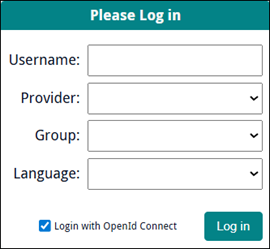
Tip: If only one provider is available, it will automatically display in the Provider field.
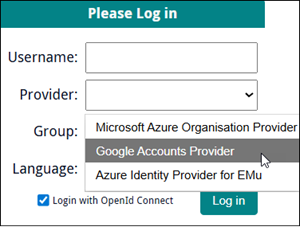
If more than one provider is available, select a provider from the drop list:
-
Click Login.
The identity provider's authentication page will open in a browser and here you enter the account credentials for that provider.
Note: If signing in for the very first time, you will be prompted to allow the application to access your basic profile information such as name or email address.
When you have signed in, you will be redirected to a Sapphire confirmation page, and Sapphire will resume control at this point and attempt to connect to the EMu server hosting Sapphire.
If OIDC authentication is not available, the Login box will appear similar to:
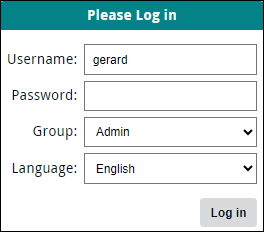
Authenticate with your username and password
Note: The Login box recalls the last username entered.
- Enter your username and password.
- If you are a member of more than one EMu user group, select the group you wish to log in as.
Projects, and the elements in a project such as Forms and Editors, can be assigned to EMu users and / or groups.
Note: If you do not select a group from the Group drop list, you will be logged in to the first group listed in the drop list by default and the permissions assigned to this group will apply.
- (Optional) Change the language of the User Interface (and data in a multilingual system) by selecting an option from the Language drop list.
- Click Log in.
If you are a member of only one project, you will be presented with the project elements you have been authorized to work with (Forms, Editors, Statistics, Tasks).
If you are a member of more than one project, a list of projects will display:
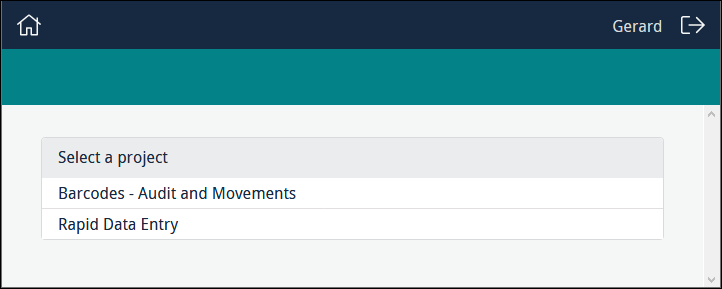
- Click the name of the project you wish to work with.
A project can comprise:
- One or more Forms
- Editors
Used to clean up and process data.
- Statistics
Graphs presenting various statistics, such as the progress of a project.
- Tasks3
A sequence of Forms. Work through multiple Forms in sequence, without the need to select each Form separately from the project dashboard.
Depending on your role, you will have access to one or more of these components, which will display in the following order:
- Forms
- Editors
- Statistics
- Tasks
When you are done working with Sapphire, click  to log out.