A Sapphire project can include one or more Forms, each of which can be selected from the Dashboard as needed (details about working with Forms can be found here). Where it makes sense, two or more Forms can be added to a Task:
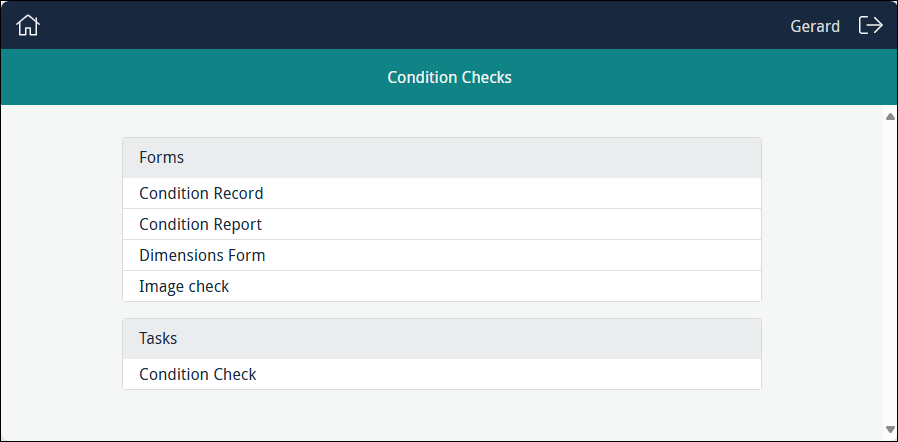
With a Task it is possible to work through multiple Forms in sequence without the need to select each Form separately from the Dashboard. In the example above, the four Forms listed in the Forms section all process data in the Condition Checks module and they have been added to the Condition Check Task. When the Task is run, the first Form, Condition Record, will display:
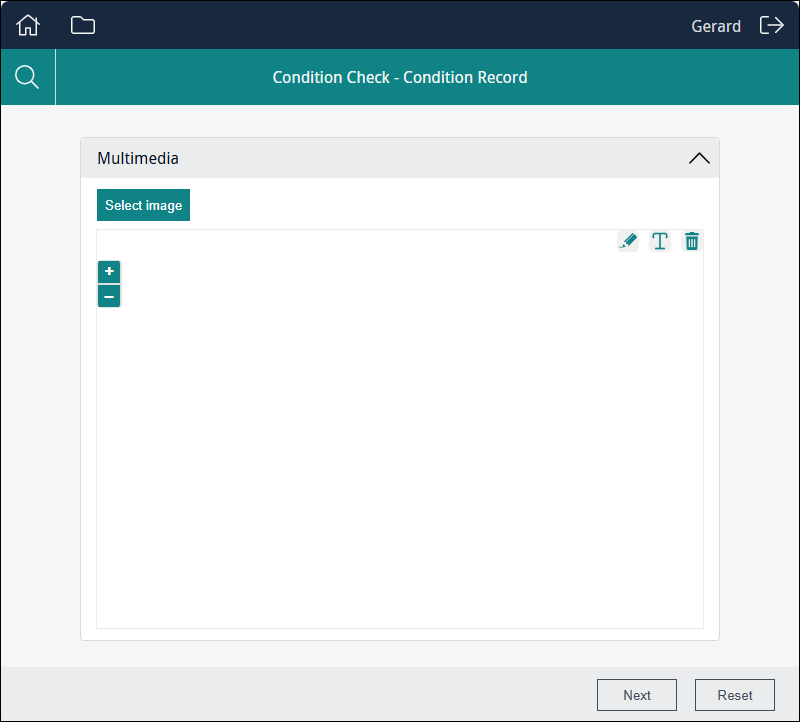
Complete the Form and select Next to display the next Form in the sequence (if you need to clear the Form of your changes, select Reset):
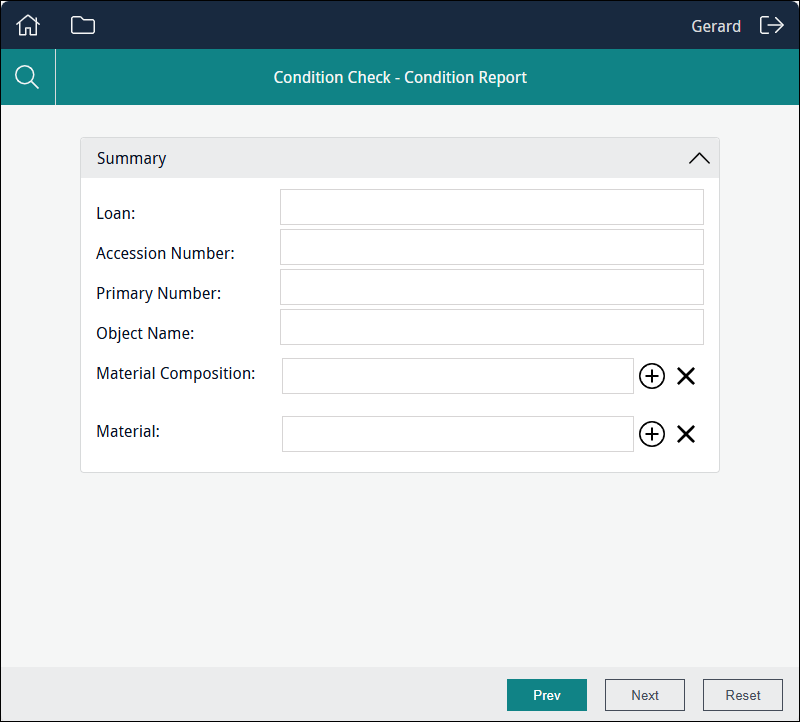
A Prev button displays on the second and subsequent Forms, allowing you to return to the previous Form if necessary.
When you reach the final Form in the sequence the Next button is replaced with a Save button (unless a report has been associated with the Task - details below):

Select Save to save data added to each of the Forms in the current sequence, modifying affected records and creating records as required, and return to the first Form in the sequence.
Reports
If one or more reports have been associated with the Task, the final Form in the sequence will include a Preview button rather than a Save button:
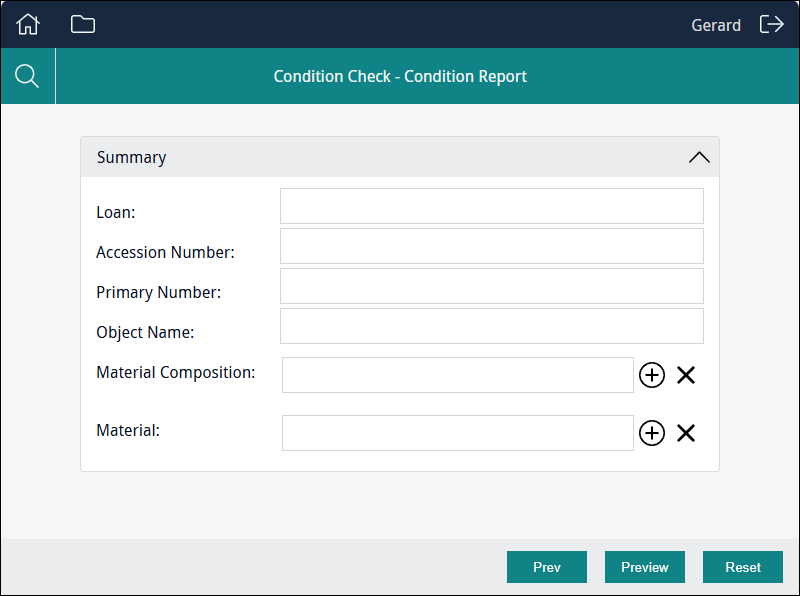
In this case, select Preview to display the report(s):
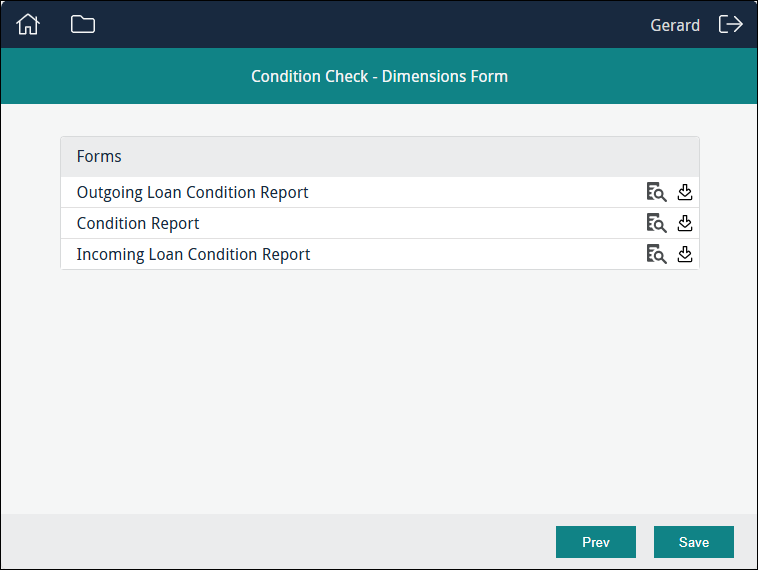
From here you have the option to view  and / or download
  a report of the data entered during the current sequence of Forms. Select Save to save your data, clear the reporting cache and return to the first Form in the sequence.
 Feedback