Information for System Administrators
When users log in to Axiell Go, any permissions assigned to their account will be applied. Permissions control which records and modules users can access, as well as what functionality and operations are available to them.
User permissions are specified in the Registry module of the EMu desktop client.
OpenID Connect (OIDC)
The option to use OpenID Connect (OIDC) to authenticate access to Axiell Go was introduced with Axiell Go version 10. The OIDC protocol allows an application to delegate authentication to an external identity provider. The identity provider handles confirmation of the user's credentials in a web browser and then authorizes the application, via a secure mechanism, to allow access to some of the user's basic profile information such as their name or email address.
Details here.
Axiell Go is a browser-based interface for the EMu Collections Management System (CMS), designed to offer simplified access for users performing core tasks such as inserting, editing, displaying, and deleting records. In its earlier form, Axiell Go featured fairly basic task-driven workflows through tailored Record Views, supporting some collections management activities. With Version 10, Axiell Go provides a more familiar experience for EMu users, essentially offering access to all data (subject to permissions), though not the full range of functionality available in the EMu desktop client. All activities (searching, adding and editing records) are presented in workspaces (similar to tabs in a web browser) and multiple activities can be managed simultaneously by flipping between workspaces.
To start working with Axiell Go:
Login to Axiell Go
Note: To access your institution's Axiell Go installation you will need its URL (web address) and a user account. Your System Administrator can provide both.
- With any supported web browser, navigate to your institution's Axiell Go installation.
If your organization has implemented OpenID Connect (OIDC) authentication, the Login box will appear similar to:
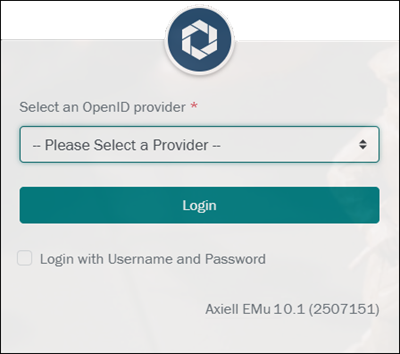 Axiell Go and OpenID
The OpenID Connect (OIDC) protocol allows Axiell Go to delegate authentication to an external identity provider. The identity provider handles confirmation of your credentials in a web browser and then authorizes Axiell Go to allow access to some basic profile information.
If only one OpenID provider is available, it will be preselected in the form; if more than one provider is available, select a provider from the drop list:
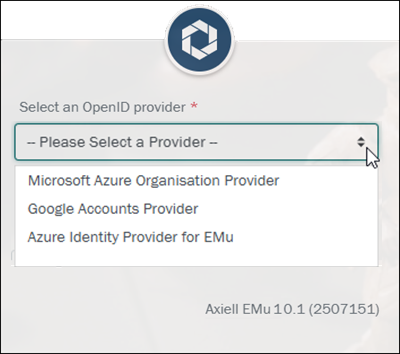
and then select the Login button.
The page will redirect to the selected provider's login page (Google in this example):
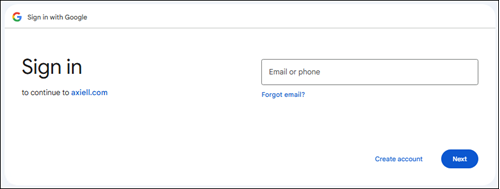
Provide the required credentials to be authenticated and returned to the Axiell Go dashboard.
In order to login to Axiell Go using your EMu username and password, select the Login with Username and Password checkbox:
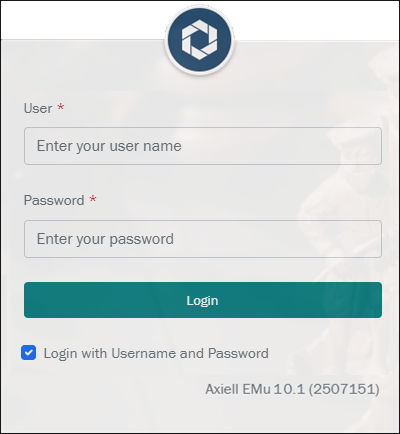
Tip: This login form, requiring your EMu username and password, will display by default if OIDC is not setup for your implementation of Axiell Go.
If OIDC is not available, enter your username and password in the Login box (which will appear similar to):
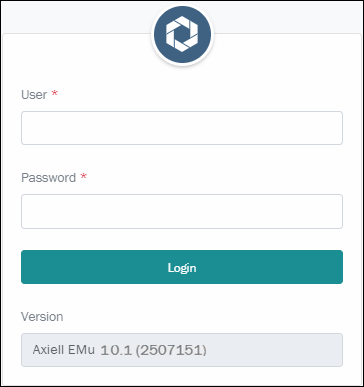
Tip: Axiell Go uses the same username and password as EMu. If you don't have an EMu account, ask your System Administrator to create an account for you.
When you sign in to Axiell Go, any permissions assigned to your EMu account will be applied. Amongst other things, permissions control which records, modules and fields you can access, as well as what functionality and operations are available to you.
-
Click Login.
If you are a member of more than one EMu user group, you can now select which group is active:
How to switch groups in Axiell Go
If you are a member of more than one EMu user group, you will be logged in to one of those groups by default: this will be the first group listed in your Group Registry entry. The Account drop list, which is accessed from the top toolbar, displays your user name and the group you are currently logged into (the Admin group in the example below)1:
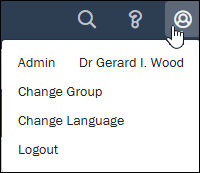
If you need to change to a different group, select Change Group to display a dialogue box with a drop list of groups available to you. Select a group from the drop list and click Submit:
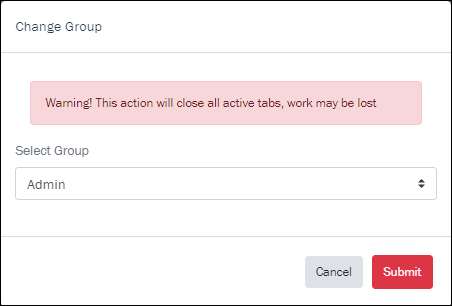
Note: Before changing groups, be sure that any changes you have made have been saved otherwise they will be lost when the switch occurs!
The Axiell Go Dashboard displays when you log in.
Axiell Go version 10 introduced changes that make the experience of working with Axiell Go more familiar to users of EMu. This includes a Command Centre in the Dashboard, a form-based search interface enabling search across all of a module's fields, the replacement of Tasks, which were designed for record creation, with a more intuitive Create New option, and removal of the simplified Record Views, aligning Go records more closely with full EMu records.
Although the experience of working with Axiell Go version 10 is more familiar to users of EMu, it does differ from the experience of working with earlier versions of Axiell Go; if you are using Axiell Go 9.1 or earlier, you will find tailored documentation here.
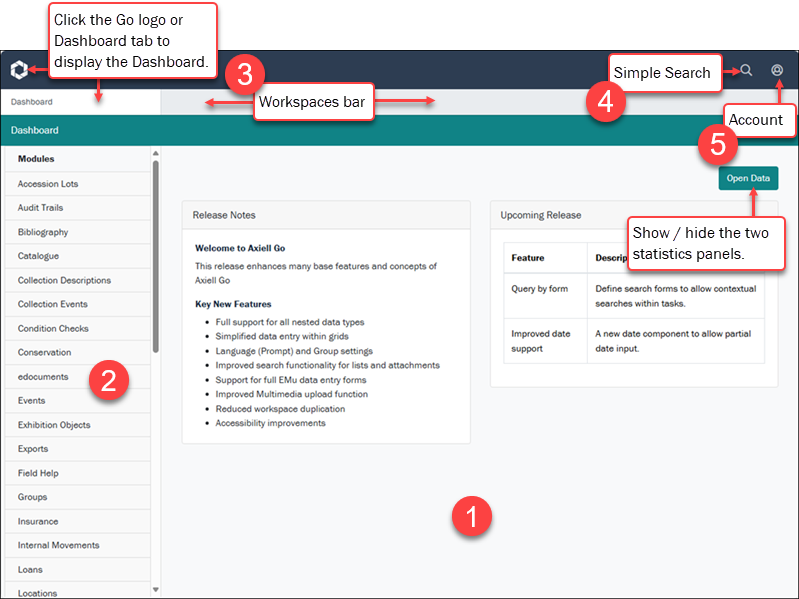
Axiell Go has a responsive user interface that adapts to the device on which it is accessed, but for the most part will appear similar to:
1. The Dashboard
The Dashboard is the default workspace when you login to Axiell Go, and it is always available.
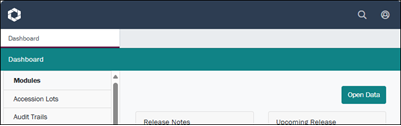
On the left is the Command Centre, which lists all modules you are authorized to access. Select a module button to open a Search workspace in which you can search for records across all tabs and fields, view details of records returned by your search, edit them, and add new records by opening an Insert workspace.
Tip: It is possible to open more than one workspace for the same module: each time you select a module button, a new Search workspace opens.
The Dashboard also holds up to four information panels, two of which can be hidden (as in the image above). Panels displaying Release Notes and news about Upcoming releases are always visible. Two panels showing statistics about the day's sessions (user logins) and records added, edited and deleted can be shown / hidden with the Open Data / Close Data toggle button (your last choice is remembered and applied when you next log in):
- Session data: a session commences when a user logs in to Axiell Go, and ends when they log out. The Dashboard can display the number of sessions throughout the current day on a graph:
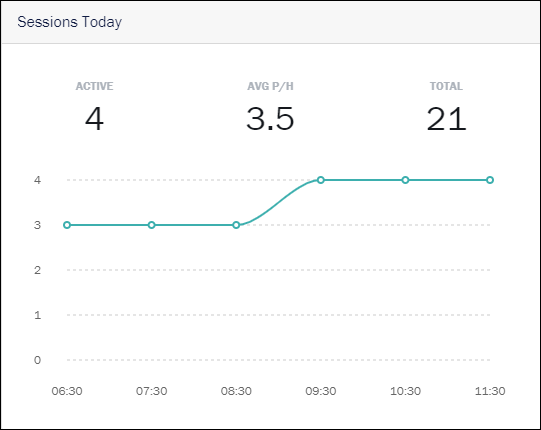
Session statistics include:
- Active: the number of active sessions (this number will change as users log in / out of Axiell Go).
- Avg P/H: the average number of sessions per hour.
- Total: the total number of sessions for the day.
-
Records: record statistics are for all users and can be viewed for the month or current week:
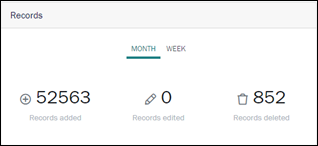
Statistics include the number of records:
- Added
- Edited
- Deleted
2. The Command Centre: open a Search workspace
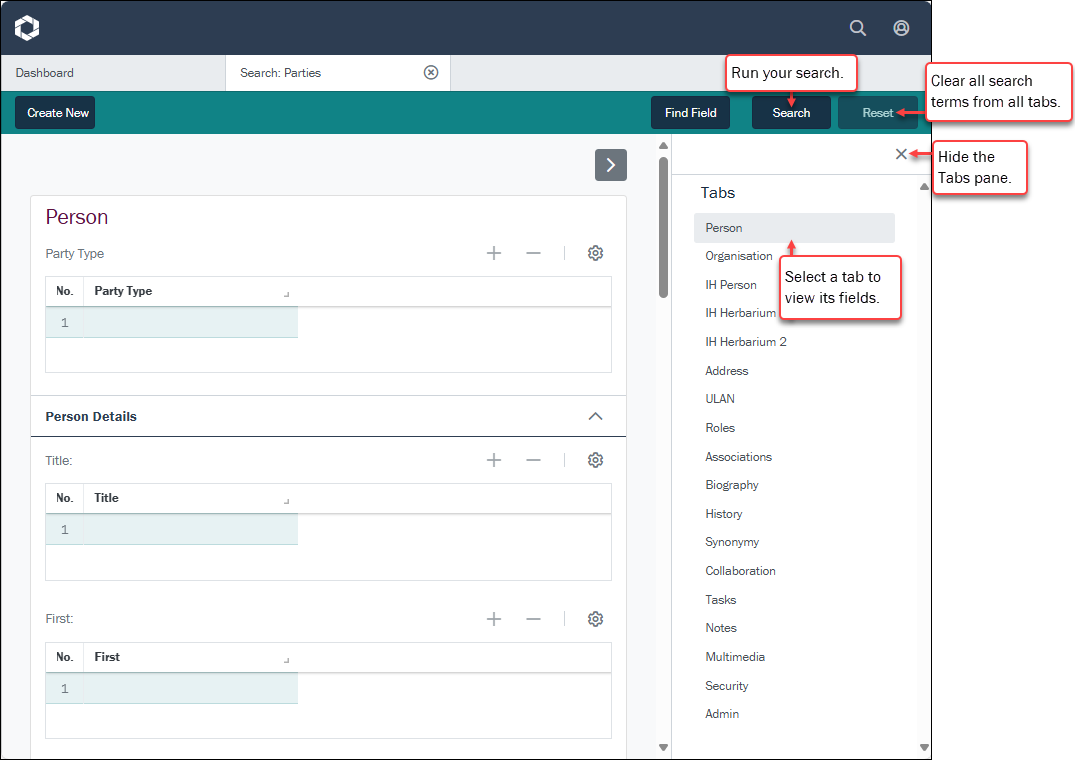
To search all available fields in a record, select a module button in the Command Centre on the Dashboard; this will open a Search workspace similar to the EMu desktop client's form-based search interface.
As with EMu, record data is organized into logical groupings on tabs. Below we see the Search workspace that opens when the Parties module button is selected in the Command Centre. The Parties module holds details about all people and organizations involved in some way with your institution's collection, and there is a tab for recording a person's name (Person tab), another for address details (Address tab), another for details about a person's roles (Roles tab), and another for recording biographical details (Biography tab), and so on. The main difference with the EMu desktop client is reversal of the layout in Axiell Go, with tabs listed in a panel on the right of the screen and the selected tab's fields displayed on the left:
Keyboard shortcuts
The following keyboard shortcuts are available in Axiell Go to support accessibility:
|
Keyboard Shortcut |
Action |
Details |
|---|---|---|
|
|
|
If only the Dashboard is open, press the In this example:
press
Press If the Dashboard is currently displaying alongside other workspaces:
press
press it again to give focus to the
and so on. When a workspace has focus, press ENTER to display that workspace. If the If you keep pressing |
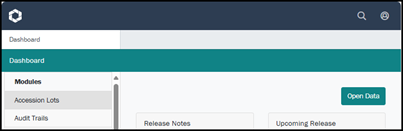
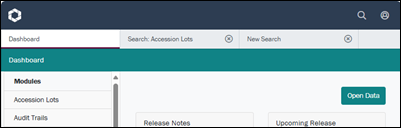
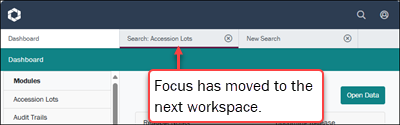

In a Search workspace, you can:
- Enter search terms in one or more fields on any tab and select the Search button to run your query.
- Select the Find Field button in the Workspace toolbar to locate any field in the current module. Details here.
- Clear all search terms on all tabs by selecting Reset.
- Select the Create New button in the Workspace toolbar to open an Insert workspace and add a new record to the current module.
When your search is run, your search results are listed in a new workspace in which you can select a record to view its details and edit it.
Details about searching in Axiell Go are available here.
3. Workspaces bar
When you login to Axiell Go, the first workspace presented is the Dashboard. Additional workspaces are added to the Workspaces bar when you:
- Select a module button in the Command Centre: this opens a Search workspace in which you can search all available fields in the selected module.
- Select the Simple Search
 icon: this opens a New Search workspace in which you search the Summary data in any available module.
 - Select a record returned by your search and then select the Edit button: this opens an Editing workspace.
- Select the Create New button in a Search workspace: this opens an Insert workspace in which you add a new record to the selected module.
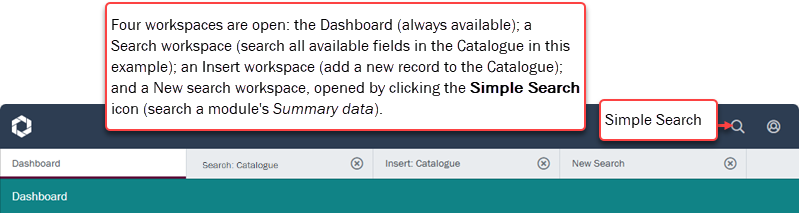
You can keep workspaces open, switching back and forth between them, or close any of them except for the Dashboard by selecting  in a workspace tab:

4. Simple Search
Select the Simple Search icon to return one or more records in a module by searching Summary Data. A New search workspace with a basic search form is added to the Workspaces bar:
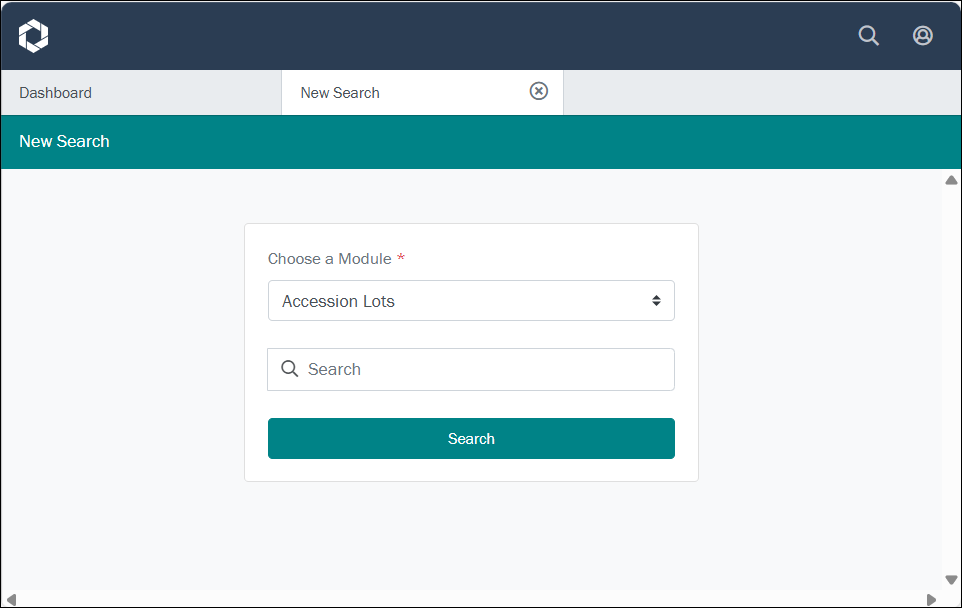
Select a module from the drop list and enter your search term in the Search field to return search results in the current workspace.
Full details about running a Simple Search are available here.
5. Account
The Account drop list displays the name of the logged in user and the group currently logged into (the Admin group in the example below), and includes options to Change Group, Change Language2, and Logout:
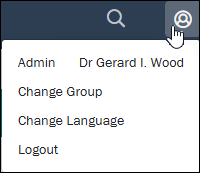
If you are a member of more than one EMu user group, you will be logged in to one of those groups by default (the first group listed in your Group Registry entry). The Change Group option allows you to switch to another group.
Select Change Group to display a dialogue box with a drop list of groups available to you. Select a group from the drop list and click Submit:
Note: Before changing groups, be sure that any changes you have made have been saved otherwise they will be lost when the switch occurs!
Select Change Language to display a dialogue box with the current language options:
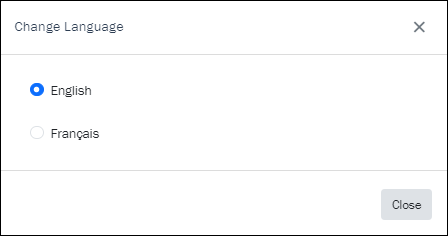
Select a radio button to switch the language of the user interface from English to French and vice versa.
Note: Before changing languages, be sure that any changes you have made have been saved otherwise they will be lost when the switch occurs!
If left unattended, your session will timeout eventually. However, to avoid unauthorized access to your collections data, be sure to log out of Axiell Go when your work is done.
What next?
- Run a search and view search results
Read on for details about running a search and viewing and working with search results.
- View record details: Details View
You've run a search and records are listed in Grid or List View showing a subset of fields. To view all data available for a record, select (click) the record to display it in Details View. Full details about viewing record can be found here.
- Edit and save a record
When a record is in Details View (you've run a search and selected a record, or perhaps you've just added a new record), it can be edited. Full details about editing and saving records can be found here.
- Add a record
Select the Create New button (found in a Search workspace) to add a new record. Details here.
- Delete a record
It is not currently possible to delete records from within Axiell Go. Suitably authorized users are able to delete records using the EMu desktop client.
- Find Field
The Find Field tool provides a quick way to locate any field in the current module; it is available when searching a module and adding a new record. Details here.